#WIFI-2 - OEM WiFi USB module (RaLink RT5370N) (Out of stock)
WIFI-2 is an USB 2.0 module compliant with IEEE802.11 b/g/n. It is based on a
RaLink RT5370N chip and fully supported by the latest Kernel Linux versions.
It can be mounted directly on a PCB instead of
plugged in a USB port and works at 3.3 Volt. It can
work in managed, ad-hoc and access point mode.
This product is discontinued by the manufacturer. Please evaluate this
alternative @article='WIFI-5'
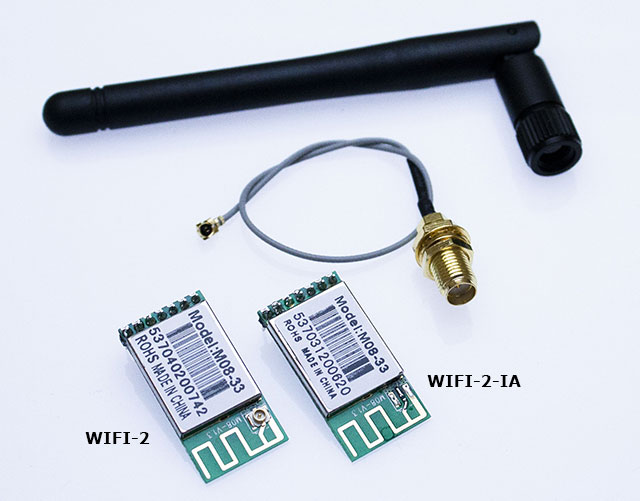 This module is available in two versions:
* __WIFI-2__ which needs an external RF antenna plugged on the i-PEX MHF receptacle
* __WIFI-2-IA__ without the i-PEX MHF receptacle using the onboard PCB antenna
Both models are available with a 6 pin pitch 2mm solded on semi-holes to be plugged on
a female connector or welded directly on the PCB.
##Datasheets
* [Module datasheet](./GWF-3M08-Datasheet.pdf)
* [Chip RT5370N datasheet](./RT5370N_datasheet.pdf)
* [PCB antenna datasheet](./AN-WIFI-01.pdf)
* [Rubber antenna datasheet](./AN-WIFI-02.pdf)
* [Rubber antenna cable datasheet](./AN-WIFI-02-CABLE.pdf)
##Certifications
* [CE certification (April 2020)](./CE-3M08-apr2020.pdf)
* [CE certification (November 2016)](./CE-3M08-14nov2016.pdf)
* [CE certification (September 2012)](./CE-3M08-26sep2012.pdf)
* [CE test report](./GWF-3M08-TestReport.pdf)
* [FCC certification](./GWF-3M08-FCC.pdf)
* [RoHS certification](./GWF-3M08-ROHS.pdf)
## Articles
* @article='arietta_wifi'
## Pinout
* @include='pinout_WIFI-2'
## Linux Kernel configuration
This are the driver to enable inside the Linux Kernel to support wifi module. Follow these articles
to know how to compile the Linux kernel:
* @article='roadrunner_compile_kernel_4_19'
To change the Kernel configuration use this command on your Linux PC as described on this article:
make ARCH=arm menuconfig
Thanks set these items:
Device Drivers --->
[*] USB support --->
<*> USB Wireless Device Management support
and these:
Device Drivers >
Network device support >
Wireless LAN [*]
[*] Ralink devices
<*> Ralink driver support --->
and then:
--- Ralink driver support
< > Ralink rt2500 (USB) support
< > Ralink rt2501/rt73 (USB) support
<*> Ralink rt27xx/rt28xx/rt30xx (USB) support
[ ] rt2800usb - Include support for rt33xx devices
[ ] rt2800usb - Include support for rt35xx devices (EXPERIMENTAL)
[ ] rt2800usb - Include support for rt3573 devices (EXPERIMENTAL)
[*] rt2800usb - Include support for rt53xx devices (EXPERIMENTAL)
[ ] rt2800usb - Include support for rt55xx devices (EXPERIMENTAL)
[ ] rt2800usb - Include support for unknown (USB) devices
[ ] Ralink debug output
## Package installation
A closed firmware made by RaLink need to be installed. This firmware will be loaded on the
module at startup
Change this line in __/etc/apt/sources.list__
deb http://cdn.debian.net/debian/ buster main
in
deb http://cdn.debian.net/debian/ buster main contrib non-free
then update the package index by typing
sudo apt update
sudo apt install firmware-ralink
Install iw and wpasupplicant using __make menuconfig__:
sudo apt install wpasupplicant
sudo apt install iw
###Network configuration to get access to a WPA-WPA2-protected Wi-Fi
Add, inside the directory __/etc/network/interfaces.d__ a file called __wlan0__
by typing:
sudo nano /etc/network/interfaces.d/wlan0
Write these lines and save:
allow-hotplug wlan0
iface wlan0 inet dhcp
wireless-essid any
pre-up wpa_supplicant -i wlan0 -c /etc/wpa_supplicant/wpa_supplicant.conf -B
post-down killall -q wpa_supplicant
Create a file called __/etc/wpa_supplicant.conf__ that contains your access point name
and password.
sudo nano /etc/wpa_supplicant/wpa_supplicant.conf
Write these lines and save:
ctrl_interface=/var/run/wpa_supplicant
ap_scan=1
network={
ssid="acmetest"
psk="acmetest"
}
Alternatively it is possible to hide the password using __wpa_phassphrase__ by typing:
wpa_passphrase acmetest acmetest
result
network={
ssid="acmetest"
#psk="acmetest"
psk=8e347eea89c0f5a5726f56f553ae6c72240bf83e1ca23dddb3a88f7cefac1bc5
}
Restart wlan0 with these command or reboot:
sudo ifdown wlan0
sudo ifup wlan0
After a while if the dhcp are working well you will obtain your interface up.
## Wi-fi adapters
* @article='WIFI-2'
* @article='WIFI-3'
* @article='WIFI-4'
* @article='WIFI-5'
@include='bio_tanzilli'
This module is available in two versions:
* __WIFI-2__ which needs an external RF antenna plugged on the i-PEX MHF receptacle
* __WIFI-2-IA__ without the i-PEX MHF receptacle using the onboard PCB antenna
Both models are available with a 6 pin pitch 2mm solded on semi-holes to be plugged on
a female connector or welded directly on the PCB.
##Datasheets
* [Module datasheet](./GWF-3M08-Datasheet.pdf)
* [Chip RT5370N datasheet](./RT5370N_datasheet.pdf)
* [PCB antenna datasheet](./AN-WIFI-01.pdf)
* [Rubber antenna datasheet](./AN-WIFI-02.pdf)
* [Rubber antenna cable datasheet](./AN-WIFI-02-CABLE.pdf)
##Certifications
* [CE certification (April 2020)](./CE-3M08-apr2020.pdf)
* [CE certification (November 2016)](./CE-3M08-14nov2016.pdf)
* [CE certification (September 2012)](./CE-3M08-26sep2012.pdf)
* [CE test report](./GWF-3M08-TestReport.pdf)
* [FCC certification](./GWF-3M08-FCC.pdf)
* [RoHS certification](./GWF-3M08-ROHS.pdf)
## Articles
* @article='arietta_wifi'
## Pinout
* @include='pinout_WIFI-2'
## Linux Kernel configuration
This are the driver to enable inside the Linux Kernel to support wifi module. Follow these articles
to know how to compile the Linux kernel:
* @article='roadrunner_compile_kernel_4_19'
To change the Kernel configuration use this command on your Linux PC as described on this article:
make ARCH=arm menuconfig
Thanks set these items:
Device Drivers --->
[*] USB support --->
<*> USB Wireless Device Management support
and these:
Device Drivers >
Network device support >
Wireless LAN [*]
[*] Ralink devices
<*> Ralink driver support --->
and then:
--- Ralink driver support
< > Ralink rt2500 (USB) support
< > Ralink rt2501/rt73 (USB) support
<*> Ralink rt27xx/rt28xx/rt30xx (USB) support
[ ] rt2800usb - Include support for rt33xx devices
[ ] rt2800usb - Include support for rt35xx devices (EXPERIMENTAL)
[ ] rt2800usb - Include support for rt3573 devices (EXPERIMENTAL)
[*] rt2800usb - Include support for rt53xx devices (EXPERIMENTAL)
[ ] rt2800usb - Include support for rt55xx devices (EXPERIMENTAL)
[ ] rt2800usb - Include support for unknown (USB) devices
[ ] Ralink debug output
## Package installation
A closed firmware made by RaLink need to be installed. This firmware will be loaded on the
module at startup
Change this line in __/etc/apt/sources.list__
deb http://cdn.debian.net/debian/ buster main
in
deb http://cdn.debian.net/debian/ buster main contrib non-free
then update the package index by typing
sudo apt update
sudo apt install firmware-ralink
Install iw and wpasupplicant using __make menuconfig__:
sudo apt install wpasupplicant
sudo apt install iw
###Network configuration to get access to a WPA-WPA2-protected Wi-Fi
Add, inside the directory __/etc/network/interfaces.d__ a file called __wlan0__
by typing:
sudo nano /etc/network/interfaces.d/wlan0
Write these lines and save:
allow-hotplug wlan0
iface wlan0 inet dhcp
wireless-essid any
pre-up wpa_supplicant -i wlan0 -c /etc/wpa_supplicant/wpa_supplicant.conf -B
post-down killall -q wpa_supplicant
Create a file called __/etc/wpa_supplicant.conf__ that contains your access point name
and password.
sudo nano /etc/wpa_supplicant/wpa_supplicant.conf
Write these lines and save:
ctrl_interface=/var/run/wpa_supplicant
ap_scan=1
network={
ssid="acmetest"
psk="acmetest"
}
Alternatively it is possible to hide the password using __wpa_phassphrase__ by typing:
wpa_passphrase acmetest acmetest
result
network={
ssid="acmetest"
#psk="acmetest"
psk=8e347eea89c0f5a5726f56f553ae6c72240bf83e1ca23dddb3a88f7cefac1bc5
}
Restart wlan0 with these command or reboot:
sudo ifdown wlan0
sudo ifup wlan0
After a while if the dhcp are working well you will obtain your interface up.
## Wi-fi adapters
* @article='WIFI-2'
* @article='WIFI-3'
* @article='WIFI-4'
* @article='WIFI-5'
@include='bio_tanzilli'