#Using Wi-Fi USB adapters
This article explains how to use the following USB Wi-Fi adapters on
your Acme Board.
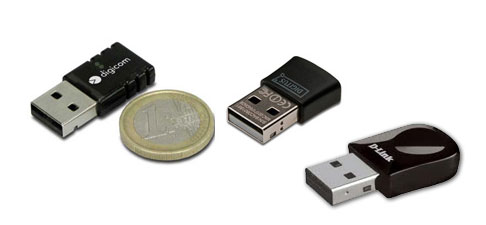
The USB Wi-Fi adapter tested, based on Realtek 8188su or 8188csu chips, are:
* DWA-131 D-Link WirelessN Nano USB adapter (HW Ver A1, F/W Ver 1.20)
* DWA-131 D-Link WirelessN Nano USB adapter (HW Ver B1, F/W Ver 2.01)
* Digicom USB Wave 150 nano dongle
* Digitus USB wireless adapter 150N
 Insert the Wi-Fi USB adapter on your Acme Board. These messages should
appear on the debug port or by typing **dmesg** command:
Insert the Wi-Fi USB adapter on your Acme Board. These messages should
appear on the debug port or by typing **dmesg** command:
~# dmesg
usb 2-3: USB disconnect, device number 5
usb 2-3: new full-speed USB device number 6 using at91_ohci
usb 2-3: not running at top speed; connect to a high speed hub
usb 2-3: New USB device found, idVendor=2001, idProduct=330d
usb 2-3: New USB device strings: Mfr=1, Product=2, SerialNumber=3
usb 2-3: Product: 802.11n WLAN Adapter
usb 2-3: Manufacturer: Realtek
usb 2-3: SerialNumber: 00e04c000001
If the driver is correctly present the messages continue with this part:
r8712u: DriverVersion: v7_0.20100831
r8712u: register rtl8712_netdev_ops to netdev_ops
r8712u: USB_SPEED_LOW with 4 endpoints
r8712u: Boot from EFUSE: Autoload OK
r8712u: CustomerID = 0x0000
r8712u: MAC Address from efuse = 00:1f:1f:75:28:93
If you don't obtain these messages probably you need to change your
Kernel configuration (see the **Kernel configuration** below).
When you get the right messages try to type this command:
debarm:~# cat /proc/net/wireless
Inter-| sta-|   Quality        |   Discarded packets               | Missed | WE
 face | tus | link level noise |  nwid  crypt   frag  retry   misc | beacon | 22
 wlan0: 0000    0.    0.    0.       0      0      0      0      0        0
## Install the Wireless-tools
To configure and use the Wi-Fi adapter you need to install the Wireless tools for Linux, a package of Linux commands intended to support
and facilitate the configuration of wireless devices.
To install this package type:
debarm:~# apt-get update
debarm:~# apt-get install wireless-tools
When finished type:
debarm:~# iwconfig
lo        no wireless extensions.

eth0      no wireless extensions.

wlan0     unassociated  Nickname:"rtl_wifi"
          Mode:Auto  Access Point: Not-Associated   Sensitivity:0/0
          Retry:off   RTS thr:off   Fragment thr:off
          Encryption key:off
          Power Management:off
          Link Quality:0  Signal level:0  Noise level:0
          Rx invalid nwid:0  Rx invalid crypt:0  Rx invalid frag:0
          Tx excessive retries:0  Invalid misc:0   Missed beacon:0
which provides info about the wireless extensions of each network adapter (in this case wlan0).
## Network configuration
As a first configuration example, we'll show you how to get access to
an open Wi-Fi LAN. Edit the file /etc/network/interfaces and
add these lines:
auto wlan0
iface wlan0 inet dhcp
  wireless-essid [your_essid]
  wireless-mode managed
Restart the network services typing:
debarm:~# /etc/init.d/networking restart
...
Listening on LPF/wlan0/5c:d9:98:a7:3a:fe
Sending on   LPF/wlan0/5c:d9:98:a7:3a:fe
Sending on   Socket/fallback
DHCPDISCOVER on wlan0 to 255.255.255.255 port 67 interval 5
DHCPOFFER from 192.168.1.1
DHCPREQUEST on wlan0 to 255.255.255.255 port 67
DHCPACK from 192.168.1.1
bound to 192.168.1.2 -- renewal in 8171 seconds.
done.
debarm:~# ifconfig
...
wlan0     Link encap:Ethernet  HWaddr 5c:d9:98:a7:3a:fe
          inet addr:192.168.1.2  Bcast:192.168.1.255  Mask:255.255.255.0
          inet6 addr: fe80::5ed9:98ff:fea7:3afe/64 Scope:Link
          UP BROADCAST RUNNING MULTICAST  MTU:1500  Metric:1
          RX packets:4057 errors:0 dropped:0 overruns:0 frame:0
          TX packets:327 errors:0 dropped:0 overruns:0 carrier:0
          collisions:0 txqueuelen:1000
          RX bytes:287147 (280.4 KiB)  TX bytes:21864 (21.3 KiB)
## Connect to a WEP-protected LAN
Edit the file /etc/network/interfaces and set wireless-key:
auto wlan0
iface wlan0 inet dhcp
  wireless-essid [your_essid]
  wireless-key [your_wep_key]
Restart the network services as in the previous section.
## Install the wpa_supplicant for encrypt access
Wpa supplicant is a software implementation of an IEEE 802.11i supplicant
for Linux that manages the authentication on the Wi-Fi link.
To install these packages type:
debarm:~# apt-get update
debarm:~# apt-get install wpasupplicant
Now add in the file /etc/network/interfaces the configuration for the wlan0
network adapter to add Wi-Fi Protected Access (WPA) or Wi-Fi Protected Access II (WPA2).
auto wlan0
iface wlan0 inet dhcp
wpa-driver wext
wpa-ssid [your_essid]
wpa-ap-scan 2
wpa-proto RSN
wpa-pairwise CCMP
wpa-group CCMP
wpa-key-mgmt WPA-PSK
wpa-psk [your_hex_key]
Change the fields [your_essid] with the SSID of your access point and
[your_hex_key] with the WPA-PSK key.
To generate a WPA-PSK key from WPA ascii key use this command:
wpa_passphrase [your_essid] [your_ascii_key]
For example on my access point called "acme" that uses the ascii key
"netusg20" the command is this:
debarm:/etc/init.d# wpa_passphrase acme netusg20
network={
        ssid="acme"
        #psk="netusg20"
        psk=38c309a773a6c936c31aeb8bcb5bc44d60539715524e77464759f29095bfc1f3
}
Copying the psk code the /etc/network/interfaces file becomes:
auto wlan0
iface wlan0 inet dhcp
wpa-driver wext
wpa-ssid acme
wpa-ap-scan 2
wpa-proto RSN
wpa-pairwise CCMP
wpa-group CCMP
wpa-key-mgmt WPA-PSK
wpa-psk 38c309a773a6c936c31aeb8bcb5bc44d60539715524e77464759f29095bfc1f3
Now type:
debarm:~# /etc/init.d/networking restart
After a while if the dhcp are working well you will obtain your interface up.
You can also detach the eth0 lan cable to try to access your FOXG20 directly from the Wi-Fi link.
debarm:~# iwconfig wlan0
wlan0     IEEE 802.11bg  ESSID:"acme"  Nickname:"rtl_wifi"
          Mode:Managed  Frequency:2.447 GHz  Access Point: 00:21:29:69:C2:D8
          Bit Rate:54 Mb/s   Sensitivity:0/0
          Retry:off   RTS thr:off   Fragment thr:off
          Encryption key:****-****-****-****-****-****-****-****   Security mode:open
          Power Management:off
          Link Quality=100/100  Signal level=100/100  Noise level=0/100
          Rx invalid nwid:0  Rx invalid crypt:0  Rx invalid frag:0
          Tx excessive retries:0  Invalid misc:0   Missed beacon:0
#Kernel configuration
If this tutorial doesn't work on your Acme Board probably you have to change
the Kernel configuration and compile it from source as explained on the articles
available from the [tutorials page index)[/tutorials].
Access to the Kernel configuration panel using __make menuconfig__ command and
enable the following items:
##For the D-Link/Realtek mini USB adapter
Device Drivers  --->
  [*] USB support  --->
    <*> USB Wireless Device Management support
You also have to verify whether the usb device ID detected by the FOX Board is known by the Kernel.
To do that type the command:
debarm:~# lsusb
Bus 001 Device 002: ID 0bda:8171 Realtek Semiconductor Corp. RTL8188SU 802.11n r
Bus 001 Device 001: ID 1d6b:0001 Linux Foundation 1.1 root hub
then get the id 0bda:8171 and check if it is listed into the file
drivers/staging/rtl8712/usb_intf.c if not apply a patch like this and recompile
the Kernel uImage:
diff --git a/drivers/staging/rtl8712/usb_intf.c b/drivers/staging/rtl8712/usb_in
index 21ce2af..bfa5458 100644
--- a/drivers/staging/rtl8712/usb_intf.c
+++ b/drivers/staging/rtl8712/usb_intf.c
@@ -49,6 +49,11 @@ static void r871xu_dev_remove(struct usb_interface *pusb_intf
 static struct usb_device_id rtl871x_usb_id_tbl[] = {

 /* RTL8188SU */
+       /* Digitus */
+       {USB_DEVICE(0x0BDA, 0x8171)},
+       /* Digicom */
+       {USB_DEVICE(0x0BDA, 0x8171)},
+       {USB_DEVICE(0x0BDA, 0x8176)},
        /* Realtek */
        {USB_DEVICE(0x0BDA, 0x8171)},
        {USB_DEVICE(0x0bda, 0x8173)},
then enable the staging driver for RealTek RTL8712U:
Device Drivers  --->
  [*] Staging drivers  --->
     <*> RealTek RTL8712U (RTL8192SU) Wireless LAN NIC driver
Install RealTek firmware from the debian package __firmware-realtek__.
I found it on:
* [http://packages.debian.org/squeeze/all/firmware-realtek/download](http://packages.debian.org/squeeze/all/firmware-realtek/download)
Dowload it by typing:
debarm:~# wget http://ftp.de.debian.org/debian/pool/non-free/f/firmware-nonfree/firmware-realtek_0.28+squeeze1_all.deb
debarm:~# dpkg -i firmware-realtek_0.28+squeeze1_all.deb
## Related links
* @article='webapp_server'
* WIFI-1 Mini WiFi USB module
* Debian Wi-Fi wiki page
* iwconfig man page
* iwlist man page
* HOWTO: Wireless Security - WPA1, WPA2, LEAP, etc.
* Wireless tools for Linux
* Wpa supplican
## Credits
Thanks to Vincent Jacques for his contributions to this article.
@shop='WIFI-2'
@shop='WIFI-2-COMBO'
@shop='DWA-131'