#Build a Debian Linux root filesystem
This article illustrates how to build an Debian Linux root filesystem to
on the armel and armhf boards made by Acme Systems
This article is not valid with the latest Ubuntu versions. Please follow this
article: @article='debos'
A Debian Stretch 9.x will be generated but it is possible to change Debian version
changing the name in any script and configuration file provided here
### Requirements
To create the rootfs contents you need a Linux PC (we used a Debian or Ubuntu)
with the some packages installed. Type these commands to install them:
sudo apt-get update
sudo apt-get install multistrap qemu qemu-user-static binfmt-support dpkg-cross
## Use Multistrap to generate the rootfs contents
Multistrap is a tool that automates the creation of complete, bootable,
Debian root filesystems. It can merge packages from different repositories.
Extra packages are added to the rootfs simply by listing them. All
dependencies are taken care of.
Create a working directory in your home directory:
mkdir debian_stretch
cd debian_stretch
Download the configuration file for your board:
* [multistrap_roadrunner.conf](./multistrap_roadrunner.conf)
* [multistrap_acqua.conf](./multistrap_acqua.conf)
* [multistrap_aria.conf](./multistrap_aria.conf)
* [multistrap_arietta.conf](./multistrap_arietta.conf)
Read [Multistrap man page](https://wiki.debian.org/MultistrapManPage) to understand each directive
meaning.
### Create the root filesystem
If you are using an armhf board use one of the command below:
sudo multistrap -a armhf -f multistrap_roadrunner.conf
sudo multistrap -a armhf -f multistrap_acqua.conf
If you are using an armel board use one of the command below:
sudo multistrap -a armel -f multistrap_aria.conf
sudo multistrap -a armel -f multistrap_arietta.conf
At the end of this procedure the directory **target-rootfs** directory will contents
the whole rootfs tree to be moved into the second partition of an Acme board bootable microSD.
Configure now the Debian packages using the armel CPU emulator **QEMU** and **chroot** to
create a jail where **dpkg** will see the **target-rootfs** as its root (/) directory.
sudo cp /usr/bin/qemu-arm-static target-rootfs/usr/bin
sudo mount -o bind /dev/ target-rootfs/dev/
sudo LC_ALL=C LANGUAGE=C LANG=C chroot target-rootfs dpkg --configure -a
At this prompt Reply with __< No >__:
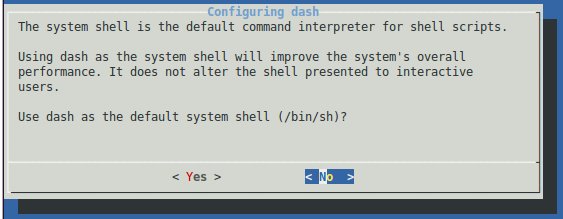 Some other prompt will appear during the configuration. Reply to them as you like.
When finished the target rootfs will be almost ready to be moved on the
target microSD but it still needs some last extra configuration file before using it.
Based on type board you are using download one of these script to create the the
right configuration files:
* [roadrunner.sh](./roadrunner.sh)
* [acqua.sh](./acqua.sh)
* [aria.sh](./aria.sh)
* [arietta.sh](./arietta.sh)
Then launch it by typing for example:
chmod +x aria.sh
sudo ./aria.sh
create now the target root login password:
sudo chroot target-rootfs passwd
Enter new UNIX password:
Retype new UNIX password:
passwd: password updated successfully
If you want to take a look to the packages installed type:
sudo chroot target-rootfs dpkg --get-selections | more
Check the Debian version installed:
cat target-rootfs/etc/debian_version
Add more packages if needed by typing:
sudo LC_ALL=C LANGUAGE=C LANG=C chroot target-rootfs apt-get update
sudo LC_ALL=C LANGUAGE=C LANG=C chroot target-rootfs apt-get install package1 package2 ...
then remove the **qemu-arm-static** executable:
sudo rm target-rootfs/usr/bin/qemu-arm-static
### Enable the root access via ssh
By default the sshd server is installed inhibiting the root login via ssh.
To enabled it change in
Some other prompt will appear during the configuration. Reply to them as you like.
When finished the target rootfs will be almost ready to be moved on the
target microSD but it still needs some last extra configuration file before using it.
Based on type board you are using download one of these script to create the the
right configuration files:
* [roadrunner.sh](./roadrunner.sh)
* [acqua.sh](./acqua.sh)
* [aria.sh](./aria.sh)
* [arietta.sh](./arietta.sh)
Then launch it by typing for example:
chmod +x aria.sh
sudo ./aria.sh
create now the target root login password:
sudo chroot target-rootfs passwd
Enter new UNIX password:
Retype new UNIX password:
passwd: password updated successfully
If you want to take a look to the packages installed type:
sudo chroot target-rootfs dpkg --get-selections | more
Check the Debian version installed:
cat target-rootfs/etc/debian_version
Add more packages if needed by typing:
sudo LC_ALL=C LANGUAGE=C LANG=C chroot target-rootfs apt-get update
sudo LC_ALL=C LANGUAGE=C LANG=C chroot target-rootfs apt-get install package1 package2 ...
then remove the **qemu-arm-static** executable:
sudo rm target-rootfs/usr/bin/qemu-arm-static
### Enable the root access via ssh
By default the sshd server is installed inhibiting the root login via ssh.
To enabled it change in target-rootfs/etc/ssh/sshd_config this line:
#PermitRootLogin prohibit-password
in:
PermitRootLogin yes
### Copy the rootfs contents on microSD
[Format a new microSD](/microsd_format).
Mount the microSD on your Linux PC
and copy all the target-rootfs contents in the second microSD partition mounted
on __/media/$USER/rootfs__.
sudo rsync -axHAX --progress target-rootfs/ /media/$USER/rootfs/
Unmount the microSD, insert it in your board, insert the [DPI cable](/DPI)
to see the Kernel bootstrap messages and boot.
In case you have used a remote Linux server to made your rootfs contents use this
command to compress the filetree and save download time:
cd target-rootfs
sudo tar -cvjSf ../rootfs.tar.bz2 .
To move the rootfs contents inside the bootable Linux microSD use:
sudo tar -xvjpSf rootfs.tar.bz2 -C /media/$USER/rootfs
sync
## Related links
* [Multistrap](http://wiki.debian.org/Multistrap)
* [Multistrap man page](http://wiki.debian.org/MultistrapManPage)
* [Building a small Debian root filesystem with Multistrap](http://free-electrons.com/blog/embdebian-with-multistrap/)
* [QEMU User Emulation](http://wiki.debian.org/QemuUserEmulation)
* [Debian mailing list](http://lists.debian.org/debian-embedded/)
* [foreign debian bootstrapping without root priviliges](http://blog.mister-muffin.de/2011/04/02/foreign-debian-bootstrapping-without-root-priviliges-with-fakeroot,-fakechroot-and-qemu-user-emulation/)
* [Changing your locale on Linux and UNIX systems](http://publib.boulder.ibm.com/infocenter/wmbhelp/v7r0m0/index.jsp?topic=%2Fcom.ibm.etools.mft.doc%2Fae19494_.htm)
* [Locale](http://en.wikipedia.org/wiki/Locale)
### Previous versions of this article
* @article='debian_jessie'
* @article='debian_wheezy'
@include='bio_tanzilli'