# How to make a copy of Linux microSD
This article illustrates how to make a backup a Linux bootable microSD
## Check the /etc/fstab contents
The recent Debian distributions use the microSD identifier to check which partitions to
use for the boot and rootfs
Insert the microSD to clone inside a Linux PC and type:
cat /media/$USER/rootfs/etc/fstab
If you have a content like this:
UUID=30611356-143e-40ae-b5b1-f39556649c42 / ext4 defaults,noatime 0 0
UUID=7D9A-CB73 /boot vfat defaults 0 0
on the cloned microSD change it in:
/dev/mmcblk0p2 / ext4 defaults,noatime 0 0
/dev/mmcblk0p1 /boot vfat defaults 0 0
you can change it also on the original microSD if you need to save time in case
of multiple clones
## Direct copy between microSDs
Use this method if you want to make a copy directly without leave
any backup on your PC
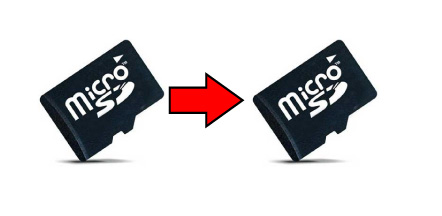
Format a new microSD following the instruction on this article:
* @article='microsd_format'
Remove the target microSD and insert the original one.
Three new folders will appear with the following path:
* /media/$USER/BOOT
* /media/$USER/rootfs
__$USER__ is an environment variable used by Linux for your user name.
Insert, in another reader, the just formatted target microSD. Other
three new folder appear with path:
* /media/$USER/BOOT
* /media/$USER/rootfs_
Note the underscore (_) char at the end of each folder name.
Type these commands to copy all:
$ sudo cp -rp /media/$USER/boot/. /media/$USER/BOOT_/.
$ sudo cp -rp /media/$USER/rootfs/. /media/$USER/rootfs_/.
$ sync
$ sudo umount /media/$USER/BOOT_
$ sudo umount /media/$USER/rootfs_
Your copy is ready to be used, extract it and try.
## Copy from microSD to a compressed set of files on HD
This method is useful if you want to have a snapshot of your microSD
contents on your hard disk to use as master to create new copy.
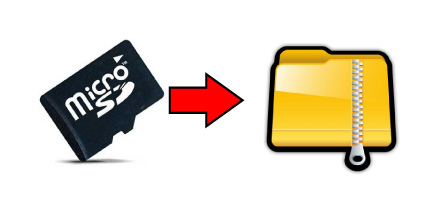
Insert the master in your Linux PC. Three new folders will appear on your desktop:
* /media/$USER/BOOT
* /media/$USER/rootfs
Open a terminal session and type:
$ cd /media/$USER/BOOT
$ sudo tar -cvjSf ../boot.tar.bz2 .
...
$ cd /media/$USER/rootfs
$ sudo tar -cvjSf ../rootfs.tar.bz2 .
...
The options mean:
* -c create a new archive
* -v verbosely list files processed
* -j filter the archive through bzip2
* -S handle sparse files efficiently
* -f use archive file or device ARCHIVE
On the /media/$USER directory will appear new three tarbal files:
* boot.tar.bz2
* rootfs.tar.bz2
These are the backup of your original microSD. They can be use to generate
a new copy followinf the next instruction.
## Create a new microSD from a compressed set of files
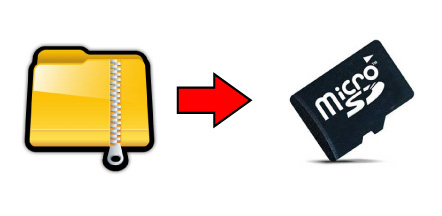
Format a new microSD following the instruction on this article:
* @article='microsd_format'
Remove the just formatted target and insert it again to automount its
contents.
Three new folders will appear with the following path:
* /media/$USER/BOOT
* /media/$USER/rootfs
$USER is an environment variable used by Linux for your user name.
If your compressed backup files are on the same directory used
to make them type:
$ sudo tar -xvjpSf /media/$USER/boot.tar.bz2 -C /media/$USER/BOOT
$ sudo tar -xvjpSf /media/$USER/rootfs.tar.bz2 -C /media/$USER/rootfs
$ sync
$ sudo umount /media/$USER/boot
$ sudo umount /media/$USER/rootfs
Your copy is ready to be used, extract it and try.
## For for Raspberry Pi users
If you are making a backup for a Raspberry Pi board read the PARTUUID of any uSD partition
using this command while the uSD is inside the Linux PC
sudo blkid /dev/sdb1
sudo blkid /dev/sdb2
and update the file __/etc/fstab__ and __cmdline.txt__
@include='bio_tanzilli'
@shop='MICROSD8G-E'
@shop='MICROSD8G'
@shop='MICROSD16G'
@shop='MICROSD32G'