#Getting started with FOX Board G20
This articles illustrates how to get started with the FOX Board G20
## Requirements
In order to get started with FOX Board G20 you need:
* a [FOX Board G20](/FOXG20)
* a bootable microSD (you can it buy from our catalog or make it by yourself following this article)
* a PS5V1A power supply
* an ethernet cable to wire the FOX to your LAN
* an active DHCP server on your LAN
* a PC with Linux, Windows or MAC wired on the same LAN
* a DPI debug port interface
A Starter Kit called COMBO-2 with all you need to get started
with the FOX Board G20 is available at the
Acme eShop.
## Step-by-step guide
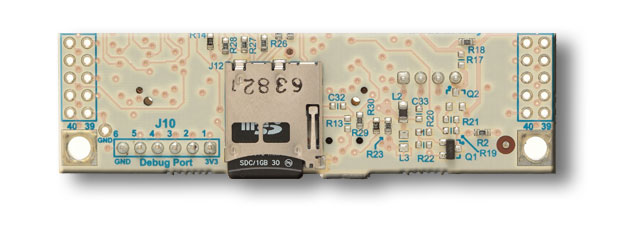
Insert the bootable Linux microSD into the socket as shown below:
* Plug in the LAN cable
* Insert the power supply
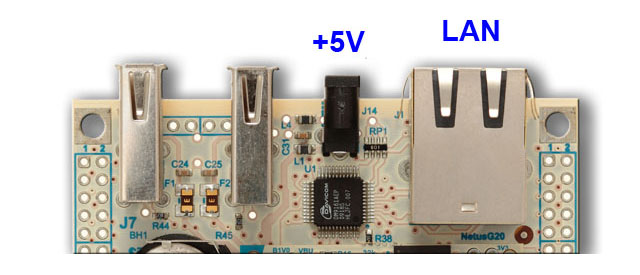
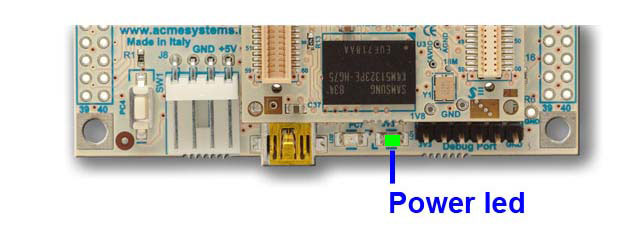
FOX Board G20 does not have an on-board power switch, so when the power supply is plugged in, it turns on immediately and the green led labelled 3V3 lights up.
If you are using the Debug Port Interface, you will see the boot sequence
on your terminal emulator.
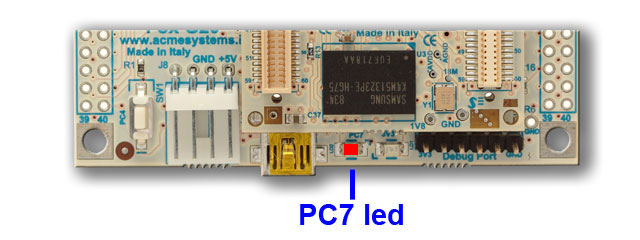
After 2 seconds the red led PC7 will start to blink in this way:
SHORT ON - SHORT ON - PAUSE
this means that the Linux Kernel is loading.
If the PC7 led blinks in this way:
SHORT ON - SHORT ON - SHORT ON - LONG ON
it hasn't found the microSD or the microSD is not valid.
After about 30 seconds Linux will be on and you can reach it via LAN or Debug Port.
###Login data
on Old microSD images:
* Login: root Password: netusg20
on recent microSD image:
* Login: root Password: acmesystems
* Login: acme Password: acmesystems
The FOX Board gets its IP address from your DCHP server so in order to know what this IP is, read @article='ip_discovering'.
Knowing the IP address, it is possible to communicate with the FOX Board using:
* a Web browser like Internet Explorer, Firefox, Safari, Google Chrome to have access to the FOX Board G20 web page (@article='web_access')
* a SSH client like **Putty** on Windows or **SSH** on Linux to have access to the command line prompt (@article='ssh')
* a SCP client like **WINSCP** on Windows or **SCP** on Linux to move the file between your PC and the file systems on the FOX microSD (@article='scp')
* a Serial Terminal Emulator like **Putty**, **Huperterminal** on Windows or **Minicom** on Linux using the serial debug port and the DPI interface (@article='DPI')
## Links
* @article='DPI'
* @article='USB-3V-SER'
@include='bio_tanzilli'