How to reflash a FOX Board
General concepts
The FOX board has a FLASH memory where you can store all the program files needed for its correct working. On this permanent memory are stored the Linux operative system and all the applications and data that the FOX needs as like as an Hard Disk drive on a PC.
To create an fimage from the sources it is necessary to use the FOX Board Software Development Kit (SDK). Some ready to use precompiled fimages (flash images) are also available from the Flash images repository or inside the single articles available on this site.
Each FOX Boards is delivered with ready to run Linux image. This image can changes in relation to the availability of new software updates, appliances, board models and memory sizes.
If you need to change the default image to use a new one generated by yourself with SDK or available from third party you can select one of the methods listed below.
It is important to clarify that you don't need to recompile a new image to be able to distribute the FOX Board with your custom application. It is sufficient instead, on the majority of cases, to transfer simply your application through FTP or SSH directly into the FOX Board file system in a rewritable class='acmetable' area of the FLASH memory (i.e. /mnt/flash).
An important point to know is that in any case YOU WILL ALWAYS BE ABLE TO RECOVER A FOX BOARD from a wrong flashing even if you flash the FOX Board with a non working fimage.
If you happen to flash a Fox Board wrongly, just download one of our published fimages (Flash images repository) matching your board (Memory chip sizes) memory size and reflash the FOX Board with one of the procedures here explained with exclusion of the FTP or WEB ones since those needs cooperation from the FOX Board itself to take place.
Reflashing methods
Local network flashing
This mechanism rely on a small ROM code inside the AXIS processor that starts up when the J8 jumper is closed on power up. This code loads in the internal cache memory the LAN packet broadcasted from the PC that is running the flashing process. The Axis will execute that small piece of code inside the LAN packet and will start to interact with the workstation PC to download the programming procedure chosen for the FLASH memory onboard.
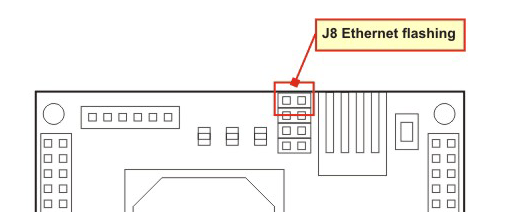
This method works only on a Local Area Network and not support any IP routing.
- Network flashing with Linux
- Network flashing with Windows XP
- Network flashing with another FOX Board
Remote network flashing
This method is based on FTP or HTTP internet protocol and can work remotely over a TCP/IP lan. The fimage is uploaded on the FOX Board flash memory and then transfered to memory flash by a Linux application. It doesn't work if Linux is not already working on the board.
This method can be used to fully update remote FOX Board but if the image is incorrect there isn't any way to restore the board remotely.
Troubleshooting
- With some network cards it can happen a long delay during flashing (up to two minutes or more) before the start of the proper writing phase. If this is your case try to change the speed of your PC Ethernet controller to 10 Mb/sec Full Duplex in the Control Panel - Network Connection - Local Area Connection properties, clicking on the Configure button on the right side of the network card image:
Select there the Advanced Tab, and on the property Speed and Duplex select 10 MB Full - On some PCs (especially laptops) there is a blocking function for packets like those that are used to flash the FOX Board Board. This block acts at driver level since the same netowrk card under Linux is able to flash the FOX Board without problems. The same problem is affecting the flashing capabilities from a vmWare image running inside Windows.
Network flashing with Linux (or VMWare image inside Windows)
This article explain how to flash a FOXLX using a PC with Ubuntu Linux
Create a directory and save on it these two files:
set them as executable class='acmetable' by typing:
$ chmod +x boot_linux
$ chmod +x etrax100boot
Select an image to write from the Flash images repository.
- Turn off your board
- Close the J8 jumper
Launch the flash programmer on your PC by typing for example:
$ sudo ./boot_linux -F -i fimageLX832_191107
Using internal boot loader: INTERNAL_NW - Network boot (default).
Starting boot...
We're doing a flash write, this may take up to a few minutes...
At this moment you have to on the FOX Board. If all is going well, you will see the ongoing process of the image transfer into the FLASH memory of the FOX Board with messages like these:
...
...
...
0x80360000: Writing 0x00010000 bytes
0x80370000: Writing 0x00010000 bytes
0x80380000: No need to write
0x80390000: No need to write
0x803a0000: Writing 0x00010000 bytes
0x80000000: Verifying...OK
JUMP
0x00000000
END
Exiting with code 0
During the programming, the red LED of the FOX Board (DL1) is all the time on.
At the end of the programming phase the FOX Board will restart itself automatically.
These are some options you can use with the boot_linux command:
- -d "device" The network interface to use, default is eth0.
- -f Save the whole firmware image to flash except the rescue partition.
- -F Save the whole firmware image to flash. NOTE that this will overwrite parameters stored in the rescue partition such as the serial number/MAC address.
- -h Print help text (information on additional options not showed here)
- -i "image" The path and name of the image to use, default is fimage.
- -p Print the resulting etrax
boot command instead of executing it.
This information becomes from:
This is the --h output:
    debian:/home/fox/devboard-R2_01# ./boot_linux -h
    Prepending "/home/fox/devboard-R2_01/tools/build/bin" to PATH.
    Prepending "/usr/local/cris/bin" to PATH.

    AXIS boot_linux, $Revision: 1.16 $ $Date: 2004/11/01 16:32:27 $
    Copyright (C) 2001-2002 Axis Communications AB

    DESCRIPTION:
      This program is used to boot (and flash) a linux image to a box.
      It tries to extract the required ETRAX 100 settings from the image file.

    SYNTAX:
      boot_linux [options]

    OPTIONS:
      -b            : The boot image to use.
      -d              : The network interface to use, default is eth0.
      -f                      : Save the image in the flash memory starting at
                                address 0x10000.
      -F                      : Save the image in the flash memory starting at
                                address 0.
      -h                      : Print this help text.
      -i               : The path and name of the image to use, default
                                is fimage.
      -o              : The offset in the flash where the flashing starts.
      -O              : The offset in the image file where the flashing
                                starts from.
      -p                      : Print the resulting etrax100boot command instead
                                of executing it.
      -s                : How much to flash (default is the size of the
                    flash minus the offset specified using -o or -f).
      -S                : The size of the flash.

      All sizes and offsets above can be specified as decimal numbers, or as
      hexadecimal numbers by prefixing them with 0x. It is also possible to use
      the suffixes k and M to specify kilo (1024) or mega (1048576).
Network flashing with Windows XP
In this article we explain how to flash a FOX Board with the LAN procedure from Windows(tm) XP without any SDK installed
This article is the result of the Windows XP porting, made by John Crispin of the e100boot and boot_linux Linux programs made originally by Axis Communications AB to flash ETRAX 100LX boards under Linux.
Requirements
- WinPcap 4.0 installed
- flashFOX.exe
Installing WinPcap 4.0
To be able to send and receive packets for flashing the FOX Board through the Ethernet network you need to have installed the WinPcap library release 4.0 for Windows. You can download the library from this link:
Download flashFOX
You can download the flashFOX Windows XP application program flashFOX from this link:
Now unzip it in your working folder where you have the fimage you want to flash the FOX Board with.
How to use flashFOX.exe
Open a command prompt window on your window PC and go to the folder where the flashFOX.exe has been unzipped and put there the fimage to flash the FOX Board with.
The first thing to do with flashFOX is to search the right ethernet port between the adapters in your PC so to be able to direct the flashing packets to the FOX Board out from the right ethernet interface.
To be able to look at every interface in your PC flashFOX has to be invoked with the option -l.
D:\ACME\WORK>flashFox -l
                                          _                       _ _
                                         | |                     (_) |
  __ _  ___ _ __ ___   ___  ___ _   _ ___| |_ ___ _ __ ___  ___   _| |_
 / _` |/ __| '_ ` _ \ / _ \/ __| | | / __| __/ _ \ '_ ` _ \/ __| | | __|
| (_| | (__| | | | | |  __/\__ \ |_| \__ \ ||  __/ | | | | \__ \_| | |_
 \__,_|\___|_| |_| |_|\___||___/\__, |___/\__\___|_| |_| |_|___(_)_|\__|
                                 __/ |
                                |___/
     **************************************************************
     e100boot made by axis.se, ported for windows by acmesystems.it
                               feedback, bugs : info@acmesystems.it
     **************************************************************

The following devices are available
        1.) Adapter for generic dialup and VPN capture
        2.) Broadcom 440x 10/100 Integrated Controller

Use the -d  option to select the device

D:\ACME\WORK>
As you can see, our ETH interface has the number 2.)
At this moment you have to switch off (if it was on) the FOX Board, close the jumper J8 (Ethernet flashing) on the FOX Board and switch it on again (with the FOX on the same LAN of the PC launching boot_linux).
Now supposing your fimage is named my_fimage you can flash completely your Fox with this simple command:
D:\ACME\WORK>flashFOX -d 2 -F -i my_fimage
                                          _                       _ _
                                         | |                     (_) |
  __ _  ___ _ __ ___   ___  ___ _   _ ___| |_ ___ _ __ ___  ___   _| |_
 / _` |/ __| '_ ` _ \ / _ \/ __| | | / __| __/ _ \ '_ ` _ \/ __| | | __|
| (_| | (__| | | | | |  __/\__ \ |_| \__ \ ||  __/ | | | | \__ \_| | |_
 \__,_|\___|_| |_| |_|\___||___/\__, |___/\__\___|_| |_| |_|___(_)_|\__|
                                 __/ |
                                |___/
     **************************************************************
     e100boot made by axis.se, ported for windows by acmesystems.it
                               feedback, bugs : info@acmesystems.it
     **************************************************************

Using device Broadcom NetXtreme Gigabit Ethernet Driver
Using internal boot loader: INTERNAL_NW - Network boot (default).
Starting boot...
We're doing a flash write, this may take up to a few minutes...


Device ID = 0x00001b49
This bootloader was built by blogic on Mon Mar 5 10:29:02 CET 2007.
Checksum of bootloader is 0x000a0ac0
Waiting for load info.
Checksum of file is 0x00001ebd
Got load info.
SET_REGISTER
0xb0000000
0x000095f8
SET_REGISTER
0xb0000004
0x00000004
SET_REGISTER
0xb000000c
0x09603737
SET_REGISTER
0xb0000008
...
Complete options for flashFOX
To get the help menu of the flashFOX program for windows, invoke it with the -h option:
D:\ACME\WORK>flashFOX -h
                                          _                       _ _
                                         | |                     (_) |
  __ _  ___ _ __ ___   ___  ___ _   _ ___| |_ ___ _ __ ___  ___   _| |_
 / _` |/ __| '_ ` _ \ / _ \/ __| | | / __| __/ _ \ '_ ` _ \/ __| | | __|
| (_| | (__| | | | | |  __/\__ \ |_| \__ \ ||  __/ | | | | \__ \_| | |_
 \__,_|\___|_| |_| |_|\___||___/\__, |___/\__\___|_| |_| |_|___(_)_|\__|
                                 __/ |
                                |___/
     **************************************************************
     e100boot made by axis.se, ported for windows by acmesystems.it
                               feedback, bugs : info@acmesystems.it
     **************************************************************

Copyright (C) 2001-2002 Axis Communications AB

DESCRIPTION:
This program is used to boot (and flash) a linux image to a box.
It tries to extract the required ETRAX 100 settings from the image file.

SYNTAX:
$my_name [options]

OPTIONS:
-f                      : Save the image in the flash memory starting at
                                                  address 0x10000.
-F                      : Save the image in the flash memory starting at
                                                  address 0.
-h                      : Print this help text.
-i image              : The path and name of the image to use, default
                                                ¦ is fimage.
-p                      : Print the resulting etrax100boot command instead
                                                  of executing it.
-P                      : Print the resulting etrax100boot
-l                      : Print a list of network devices that are available
-d                  : Choose which device you want to use
                          Use the -l option to get a list of devices

All sizes and offsets above can be specified as decimal numbers, or as
hexadecimal numbers by prefixing them with 0x. It is also possible to use
the suffixes k and M to specify kilo (1024) or mega (1048576).

D:\ACME\WORK>
Network flashing with another FOX Board
In this article we'll illustrate how to flash the entire fimage of a FOX Board from another FOX Board. This application is very useful to transfer the production fimage on the FOX Boards during hi-volume manifacturing without the use of a dedicated Linux PC
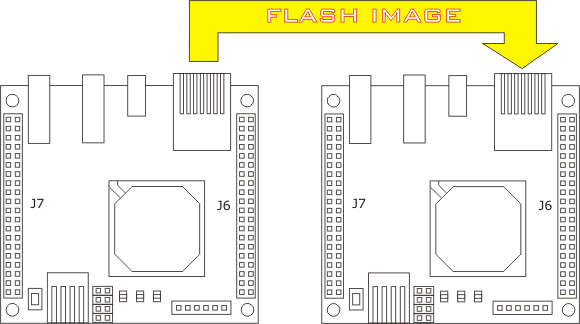
etrax100boot is the utility wrote by Axis to program the FLASH memory used by ETRAX 100LX CPU to make the boot, through the LAN. This is the main and faster method used during the first initialization of the ETRAX based boards included the FOX.
This utility is already included inside the Axis SDK in a ready to use executable class='acmetable' file for PC. But due to the heavy environment and less space usually available inside the factory, it can be a better choice to use a solid state alternative to PC to make the initialization of the FOX Boards.
etrax100boot porting
In the download section of this article it is possible to download the executable class='acmetable' version for the FOX Board of the etrax100boot utility with a simple script to launch it.
- Copy etrax100boot and flashfox script in the /mnt/flash
- Copy a ready FOX Board image on /var directory or on a USB key.
- Change the default FOX Board IP to avoid an IP conflict after the flash phase
- Mount the USB key if needs. i.e.
mount -t vfat /dev/sda1 /mnt/1
- Connect the blank FOX to the programmer FOX by a cross cable
- Close the LAN boot jumper on the blank FOX Board and reset it
- Launch the foxflash script followed by the fimage name and path:
./foxflash /mnt/1/myimage
Download
- Executable class='acmetable' file of etrax100boot for the FOX Board (using glibc): etrax100boot
- Simple bash script to use etrax100boot: flashfox
Network flashing through FTP
This article describes how to reprogram the FLASH memory using an FTP client
The FOX Board has an FTP server to enable file transfers in and out its filesystem. There are two special files that, if correctly used, enable the complete reprogramming of the memory FLASH. This permits, obviously to update the firmware of a product based on FOX board even from remote through a simple TCP/IP connection. This procedure, which will update the kernel part and the mnt/flash part of the FLASH chip, will also maintain the original Mac Address, stored in the FLASH bootblock.
The two files are:
- flash
that permits to update the FOX FLASH read only partition of the FOX filesystem containing the kernel image maintaining the personal data on the FOX FLASH read write partition. - flash_all
that permits to rewrite completely all tha FLASH memory inside the FOX. All the new data transferred into the FOX after the previous flash_all will be lost.
It is possible to use any FTP client to connect to the FOX board with the following credentials: username root and password pass.
Let's see an example:
$ftp 192.168.0.90
Connected to 192.168.0.90.
220 Fox Linux Board release 2.00 (mag 26 2005) ready.
Name (192.168.0.90): root
331 User name okay, need password.
Password: pass
230 User logged in, proceed.
Remote system type is UNIX.
Using binary mode to transfer files.
ftp> put fimage flash_all
local: fimage remote: flash_all
227 Entering Passive Mode (192,168,0,90,12,0)
150-Shutting down processes.
Preparing system for upgrade ...
During the programming phase the red led (DL1) of the FOX board remains all the time on.
Network flashing through WEB
This article describes how to reprogram the FLASH memory using a web browser
Into the default Web page available on the FOX Board there are two links that permit to upload a new image on the FOX Board flash memory:
- Update FOX firmware - system area
this link enable the update the read only partition of the FOX board containing the kernel image maintaining the personal data on the FOX Board flash read write partition - Update FOX firmware - entire system
this link enable to upgrade all the FLASH memory. All the data inside the FOX memory will be overwritten.
You need only to click on the preferred link and select the file containing the image to store into the FOX FLASH memory.
During the programming phase the red led (DL1) remains all the time on.